SSL Certificate
What is SSL and SSL certificate?
SSL (Secure Sockets Layer) is the
standard security technology for establishing an encrypted link between a
web server and a browser. This link ensures that all data passed
between the web server and browsers remain private and integral.
SSL Certificates are small data files that digitally bind a cryptographic key
to an organization’s details. When installed on a web server, it
activates the padlock and the https protocol (over port 443) and allows
secure connections from a web server to a browser. Typically, SSL
is used to secure credit card transactions, data transfer and logins,
and more recently is becoming the norm when securing browsing of social
media sites. SSL Certificates bind together:
-
A domain name, server name or hostname.
-
An organizational identity (i.e. company name) and location.
An organization needs to install the SSL Certificate onto its web
server to initiate secure sessions with browsers. Depending on the type of SSL Certificate
applied for, the organization will need to go through differing levels
of vetting. Once installed, it is possible to connect to the website
over https://www.domain.com, as this tells the server to establish a
secure connection with the browser. Once a secure connection is
established, all web traffic between the web server and the web browser
will be secure. Browsers tell visitors a website is SSL secure via
several visible trust indicators:
Extended Validation (EV) SSL Certificates (such as GlobalSign ExtendedSSL):
Standard SSL Certificates (such as GlobalSign DomainSSL and OrganizationSSL) display:
GlobalSign offers a range of SSL Certificates with the strongest 2048 bit encryption and value add features to ensure your website is protected.
How to create a CA-Signed Certificate from Keystore?
To create a CA-Signed certificate from Keystore, you must have a .crt and .key files. These file types are explained below.
CRT - Certificate file which contains the details like Issued By, Issued To, Expiration date etc.
KEY - Key file contains the private key by which the certificate file is signed by a certificate authority.
Tools we will need to generate a KeyStore or JKS file:
1. OpenSSL
2. JDK
Follow these steps:
1. Open the OpenSSL.exe file to open a command line and enter the following command to create a .p12 file. This file will be used in further steps.
openssl pkcs12 -export -in [path to certificate] -inkey [path to private key] -certfile [path to certificate] -out [path where you want your P12 file to be created]/[file name].p12
2. It asks for a password when you use it first time. Let's put a simple password - "testing". You will be using this password from now on.
3. Go to the JDK directory and open BIN folder. Now open Keytool.jar to open another command line. Enter this command in Keytool command line.
keytool -importkeystore -srckeystore [path to p12 file] -srcstoretype pkcs12 -destkeystore [path where you want your jks file to be created]/[filename].jks -deststoretype JKS
4. Salesforce doesn't accept JKS file with a numeric alias. And by default the alias is 1 after Step-3. So now we are going to change the alias. Enter the below command in the Keytool command line.
keytool -changealias -keystore [path to key store or JKS file] -alias 1
How to use a CA-Signed Certificate in Salesforce?
1. Go to Setup --> Type "Certificate" in quick find.
2. Go to Certificate and Key Management.
3. Click "Import from Keystore" button.
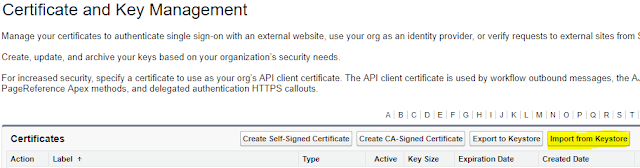
4. Upload your .JKS file and click Save.
5. You can verify the certificate by downloading from the "Download Certificate" button.
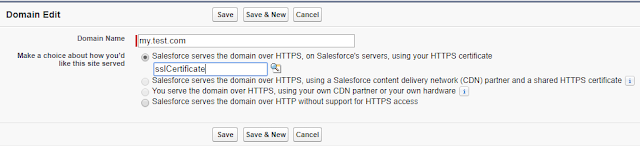
Now we have successfully created an SSL Certificate in Salesforce. We just need to use it in one of our domains. While creating a domain in Salesforce, the first option should be chosen to select an SSL Certificate.
Reference Link:
First published on Blogger in 2017. Some screenshots and APIs have changed since; the code is kept as written.