Big Objects
1. Big objects are used for archiving the data. We are talking about billions of records.
2. Big objects cannot be created by UI, we can only create big objects using Metadata API and tools like Eclipse, ANT, Workbench.
3. Please keep the following things in mind while creating a big object:
Now follow these steps to finally create a big object:
1. Save your OBJECT file in a folder named as "objects".
2. package.xml file should be in the root folder.
3. Create a zip file of objects folder and package.xml.
4. Open Workbench --> Migration --> Deploy.
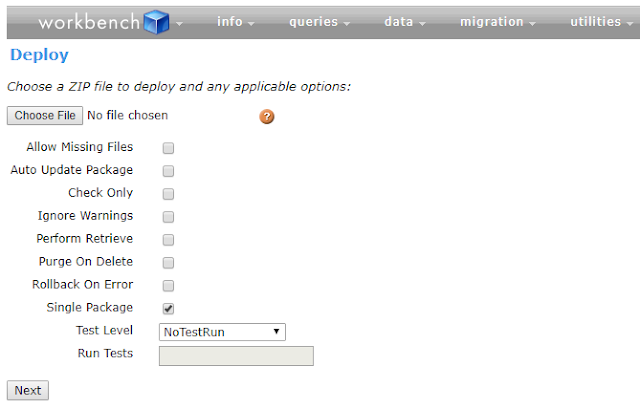
5. Choose the ZIP file and check "Single Package" checkbox. See the screenshot for reference. Click Next and Click Deploy.
2. Big objects cannot be created by UI, we can only create big objects using Metadata API and tools like Eclipse, ANT, Workbench.
3. Please keep the following things in mind while creating a big object:
- Custom Big objects' API name ends with __b like custom objects' API name ends with __c.
- Atleast one Index field must be specified in the .OBJECT file. Index field must be required.
- Once a field is created, it cannot be modified or deleted. Only the field name can be modified. No other attribute of that field can be modified. So you should be very careful while defining a big object and its fields.
- Simplest tool which can be used to create a big object is Workbench.
There are two types of files we will create to define a big object:
1. OBJECT file - It is the ObjectName__c.object file which contains the object & fields definition.
2. XML file - It is the package.xml file which defines what components should be deployed.
Sample OBJECT file looks like this:
<?xml version="1.0" encoding="UTF-8"?>
<CustomObject xmlns="http://soap.sforce.com/2006/04/metadata">
<deploymentStatus>Deployed</deploymentStatus>
<fields>
<fullName>AccountId__c</fullName>
<trackFeedHistory>false</trackFeedHistory>
<label>Account Id</label>
<trackTrending>false</trackTrending>
<type>Lookup</type>
<referenceTo>Account</referenceTo>
<relationshipName>ChildOpportunities</relationshipName>
</fields>
<label>Opportunity Archive</label>
<pluralLabel>Opportunity Archives</pluralLabel>
</CustomObject>
Sample XML file looks like this:
<?xml version="1.0" encoding="UTF-8" standalone="yes"?>
<Package xmlns="http://soap.sforce.com/2006/04/metadata">
<types>
<members>*</members>
<name>CustomObject</name>
</types>
<version>41.0</version>
</Package>
Now follow these steps to finally create a big object:
1. Save your OBJECT file in a folder named as "objects".
2. package.xml file should be in the root folder.
3. Create a zip file of objects folder and package.xml.
4. Open Workbench --> Migration --> Deploy.
5. Choose the ZIP file and check "Single Package" checkbox. See the screenshot for reference. Click Next and Click Deploy.
First published on Blogger in 2018. Some screenshots and APIs have changed since; the code is kept as written.