Graphs and Charts: Lightning Component
This post is about using Charts in Lightning component. CLICK HERE to see the preview.
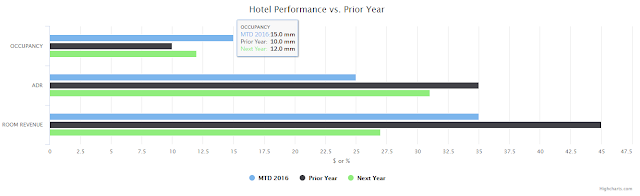
I have used HIGHCHARTS library.
1. Download the javascript from here: DOWNLOAD
2. Upload this JS file into a static resource named as "Highcharts".
Details of this lightning component:
1. This component is used to display graphical representation of data.
2. The component is fully dynamic means it can be used for different types of graphs/charts and different data.
3. There are 6 attributes in this component.
Now create a Lightning Component - DynamicChart
<aura:component >
<ltng:require scripts="{!$Resource.HighCharts}" afterScriptsLoaded="{!c.afterScriptsLoaded}"/>
<div aura:id="chart" class="slds-box slds-box--small"></div>
<aura:attribute name="chartType" type="string"/>
<aura:attribute name="chartTitle" type="string"/>
<aura:attribute name="chartSubTitle" type="string"/>
<aura:attribute name="xAxisCategories" type="string[]"/>
<aura:attribute name="yAxisParameter" type="string"/>
<aura:attribute name="data" type="string"/>
</aura:component>
Now create a controller for the above component and write the below code:
({
afterScriptsLoaded : function(component, event, helper)
{
var jsonData = component.get("v.data");
var dataObj = JSON.parse(jsonData);
console.log('jsonData===',jsonData);
console.log('dataObj===',dataObj);
new Highcharts.Chart({
chart: {
renderTo: component.find("chart").getElement(),
type: component.get("v.chartType")
},
title: {
text: component.get("v.chartTitle")
},
subtitle: {
text: component.get("v.chartSubTitle")
},
xAxis: {
categories: component.get("v.xAxisCategories"),
crosshair: true
},
yAxis: {
min: 0,
title:
{
text: component.get("v.yAxisParameter")
}
},
tooltip:
{
headerFormat: '<span style="font-size:10px">{point.key}</span><table>',
pointFormat: '<tr><td style="color:{series.color};padding:0">{series.name}: </td>' +
'<td style="padding:0"><b>{point.y:.1f} mm</b></td></tr>',
footerFormat: '</table>',
shared: true,
useHTML: true
},
plotOptions: {
column: {
pointPadding: 0.2,
borderWidth: 0
}
},
series: dataObj
});
}
})
Now create a Lightning App in which you can use the above component:
<aura:application >
<aura:attribute type="String" name="data"></aura:attribute>
<aura:handler name="init" value="{!this}" action="{!c.doInit}"/>
<c:DynamicChart aura:id="compId" chartType='bar'
chartTitle='Hotel Performance vs. Prior Year'
chartSubTitle=''
xAxisCategories="['OCCUPANCY', 'ADR', 'ROOM REVENUE']"
yAxisParameter='$ or %'
data="{!v.data}"/>
</aura:application>
Now create a controller for the above app and write the below code:
({
doInit : function(component, event, helper)
{
var jsonData = '';
var dataObj = [];
dataObj[0] = {
name: 'MTD 2016',
data: [15,25,35]
};
dataObj[1] = {
name: 'Prior Year',
data: [10,35,45]
};
dataObj[2] = {
name: 'Next Year',
data: [15,20,32]
};
jsonData = JSON.stringify(dataObj);
component.set("v.data",jsonData);
console.log(dataObj, '======', jsonData);
//component.find("compId").set("v.data", jsonData);
}
})
USING THE LIGHTNING COMPONENT IN A VISUALFORCE PAGE:
1. The lightning application should extend and implement the following class and interface respectively:
a. extends="ltng:outApp"
b. implements="ltng:allowGuestAccess"
2. Change the application code with the below code:
<aura:application extends="ltng:outApp" implements="ltng:allowGuestAccess" access="GLOBAL">
<aura:dependency resource="c:OuterDynamicChart"/>
</aura:application>
3. Create another Lightning component named as "OuterDynamicChart" in which our previously created component will be included:
<aura:component implements="flexipage:availableForAllPageTypes" access="global" >
<aura:attribute type="String" name="data"></aura:attribute>
<aura:handler name="init" value="{!this}" action="{!c.doInit}"/>
<c:DynamicChart aura:id="compId" chartType='bar'
chartTitle='Hotel Performance vs. Prior Year'
chartSubTitle=''
xAxisCategories="['OCCUPANCY', 'ADR', 'ROOM REVENUE']"
yAxisParameter='$ or %'
data="{!v.data}"/>
</aura:component>
4. Create controller for this newly created component in the step-3:
({
doInit : function(component, event, helper)
{
var jsonData = '';
var dataObj = [];
dataObj[0] = {
name: 'MTD 2016',
data: [15,25,35]
};
dataObj[1] = {
name: 'Prior Year',
data: [10,35,45]
};
dataObj[2] = {
name: 'Next Year',
data: [12,31,27]
};
jsonData = JSON.stringify(dataObj);
component.set("v.data",jsonData);
console.log(dataObj, '======', jsonData);
}
})
5. Create a VF Page:
<apex:page sidebar="false" showheader="false">
<apex:includeScript value="/lightning/lightning.out.js" />
<apex:includeLightning/>
<div id="lightning"/>
<script>
$Lightning.use("c:DynamicChartApp", function()
{
$Lightning.createComponent("wnc:OuterDynamicChart",
{ label : "" },
"lightning",
function(cmp) {
// do some stuff
});
});
</script>
</apex:page>
I have used HIGHCHARTS library.
1. Download the javascript from here: DOWNLOAD
2. Upload this JS file into a static resource named as "Highcharts".
Details of this lightning component:
1. This component is used to display graphical representation of data.
2. The component is fully dynamic means it can be used for different types of graphs/charts and different data.
3. There are 6 attributes in this component.
- ChartType: It determines the type of chart. For eg: column, bar etc.
- ChartTitle: The title of the chart
- chartSubTitle: The subtitle of the chart
- xAxisCategories: The X-Axis parameters in the graph. It is an array of string.
- yAxisParameter: The Y-Axis parameter in the graph.
- data: It accepts JSON format of an array of object.
Now create a Lightning Component - DynamicChart
<aura:component >
<ltng:require scripts="{!$Resource.HighCharts}" afterScriptsLoaded="{!c.afterScriptsLoaded}"/>
<div aura:id="chart" class="slds-box slds-box--small"></div>
<aura:attribute name="chartType" type="string"/>
<aura:attribute name="chartTitle" type="string"/>
<aura:attribute name="chartSubTitle" type="string"/>
<aura:attribute name="xAxisCategories" type="string[]"/>
<aura:attribute name="yAxisParameter" type="string"/>
<aura:attribute name="data" type="string"/>
</aura:component>
Now create a controller for the above component and write the below code:
({
afterScriptsLoaded : function(component, event, helper)
{
var jsonData = component.get("v.data");
var dataObj = JSON.parse(jsonData);
console.log('jsonData===',jsonData);
console.log('dataObj===',dataObj);
new Highcharts.Chart({
chart: {
renderTo: component.find("chart").getElement(),
type: component.get("v.chartType")
},
title: {
text: component.get("v.chartTitle")
},
subtitle: {
text: component.get("v.chartSubTitle")
},
xAxis: {
categories: component.get("v.xAxisCategories"),
crosshair: true
},
yAxis: {
min: 0,
title:
{
text: component.get("v.yAxisParameter")
}
},
tooltip:
{
headerFormat: '<span style="font-size:10px">{point.key}</span><table>',
pointFormat: '<tr><td style="color:{series.color};padding:0">{series.name}: </td>' +
'<td style="padding:0"><b>{point.y:.1f} mm</b></td></tr>',
footerFormat: '</table>',
shared: true,
useHTML: true
},
plotOptions: {
column: {
pointPadding: 0.2,
borderWidth: 0
}
},
series: dataObj
});
}
})
Now create a Lightning App in which you can use the above component:
<aura:application >
<aura:attribute type="String" name="data"></aura:attribute>
<aura:handler name="init" value="{!this}" action="{!c.doInit}"/>
<c:DynamicChart aura:id="compId" chartType='bar'
chartTitle='Hotel Performance vs. Prior Year'
chartSubTitle=''
xAxisCategories="['OCCUPANCY', 'ADR', 'ROOM REVENUE']"
yAxisParameter='$ or %'
data="{!v.data}"/>
</aura:application>
Now create a controller for the above app and write the below code:
({
doInit : function(component, event, helper)
{
var jsonData = '';
var dataObj = [];
dataObj[0] = {
name: 'MTD 2016',
data: [15,25,35]
};
dataObj[1] = {
name: 'Prior Year',
data: [10,35,45]
};
dataObj[2] = {
name: 'Next Year',
data: [15,20,32]
};
jsonData = JSON.stringify(dataObj);
component.set("v.data",jsonData);
console.log(dataObj, '======', jsonData);
//component.find("compId").set("v.data", jsonData);
}
})
USING THE LIGHTNING COMPONENT IN A VISUALFORCE PAGE:
1. The lightning application should extend and implement the following class and interface respectively:
a. extends="ltng:outApp"
b. implements="ltng:allowGuestAccess"
2. Change the application code with the below code:
<aura:application extends="ltng:outApp" implements="ltng:allowGuestAccess" access="GLOBAL">
<aura:dependency resource="c:OuterDynamicChart"/>
</aura:application>
3. Create another Lightning component named as "OuterDynamicChart" in which our previously created component will be included:
<aura:component implements="flexipage:availableForAllPageTypes" access="global" >
<aura:attribute type="String" name="data"></aura:attribute>
<aura:handler name="init" value="{!this}" action="{!c.doInit}"/>
<c:DynamicChart aura:id="compId" chartType='bar'
chartTitle='Hotel Performance vs. Prior Year'
chartSubTitle=''
xAxisCategories="['OCCUPANCY', 'ADR', 'ROOM REVENUE']"
yAxisParameter='$ or %'
data="{!v.data}"/>
</aura:component>
4. Create controller for this newly created component in the step-3:
({
doInit : function(component, event, helper)
{
var jsonData = '';
var dataObj = [];
dataObj[0] = {
name: 'MTD 2016',
data: [15,25,35]
};
dataObj[1] = {
name: 'Prior Year',
data: [10,35,45]
};
dataObj[2] = {
name: 'Next Year',
data: [12,31,27]
};
jsonData = JSON.stringify(dataObj);
component.set("v.data",jsonData);
console.log(dataObj, '======', jsonData);
}
})
5. Create a VF Page:
<apex:page sidebar="false" showheader="false">
<apex:includeScript value="/lightning/lightning.out.js" />
<apex:includeLightning/>
<div id="lightning"/>
<script>
$Lightning.use("c:DynamicChartApp", function()
{
$Lightning.createComponent("wnc:OuterDynamicChart",
{ label : "" },
"lightning",
function(cmp) {
// do some stuff
});
});
</script>
</apex:page>
First published on Blogger in 2017. Some screenshots and APIs have changed since; the code is kept as written.